Let’s explore how the app works and how to use its features
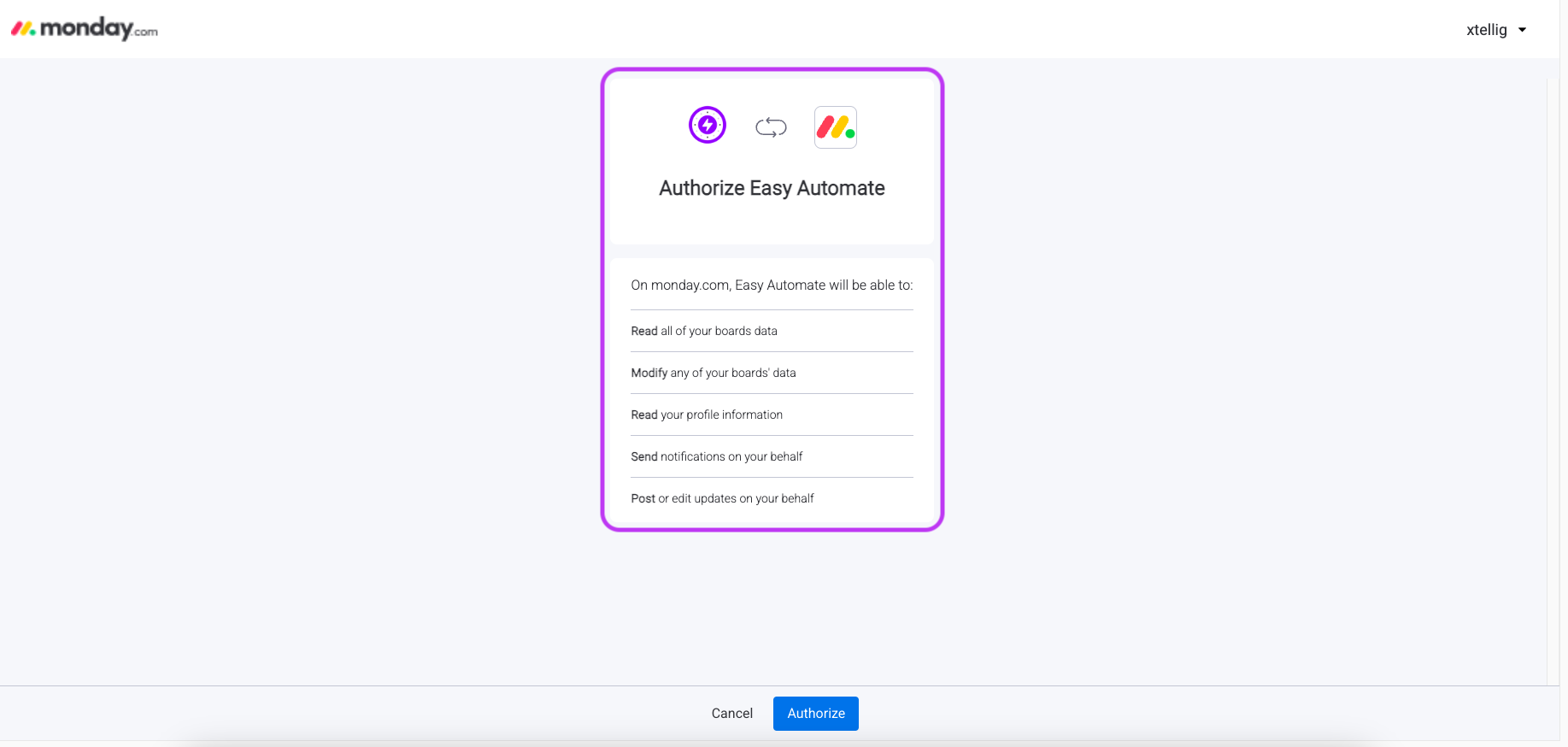
Tip 1 : Install and Authorize the app You can easily Install our Easy Automate app by clicking the install app button and have to authorize our app by clicking Authorize button according to below screenshot
Tip 2 : Board Membership for Successful Automations If you’re running a large automation for more than 10 items at once in a private or shareable board, the app installer or the user who authorized the app must be a member of that board to ensure all the automations are processed successfully.
Tip 3 : Explore Features and Usage Easily You can view your current plan, monthly usage, and subscription period in the section shown in this screenshot. When you reach your usage limit, we will notify the app installer via email along with notifications.
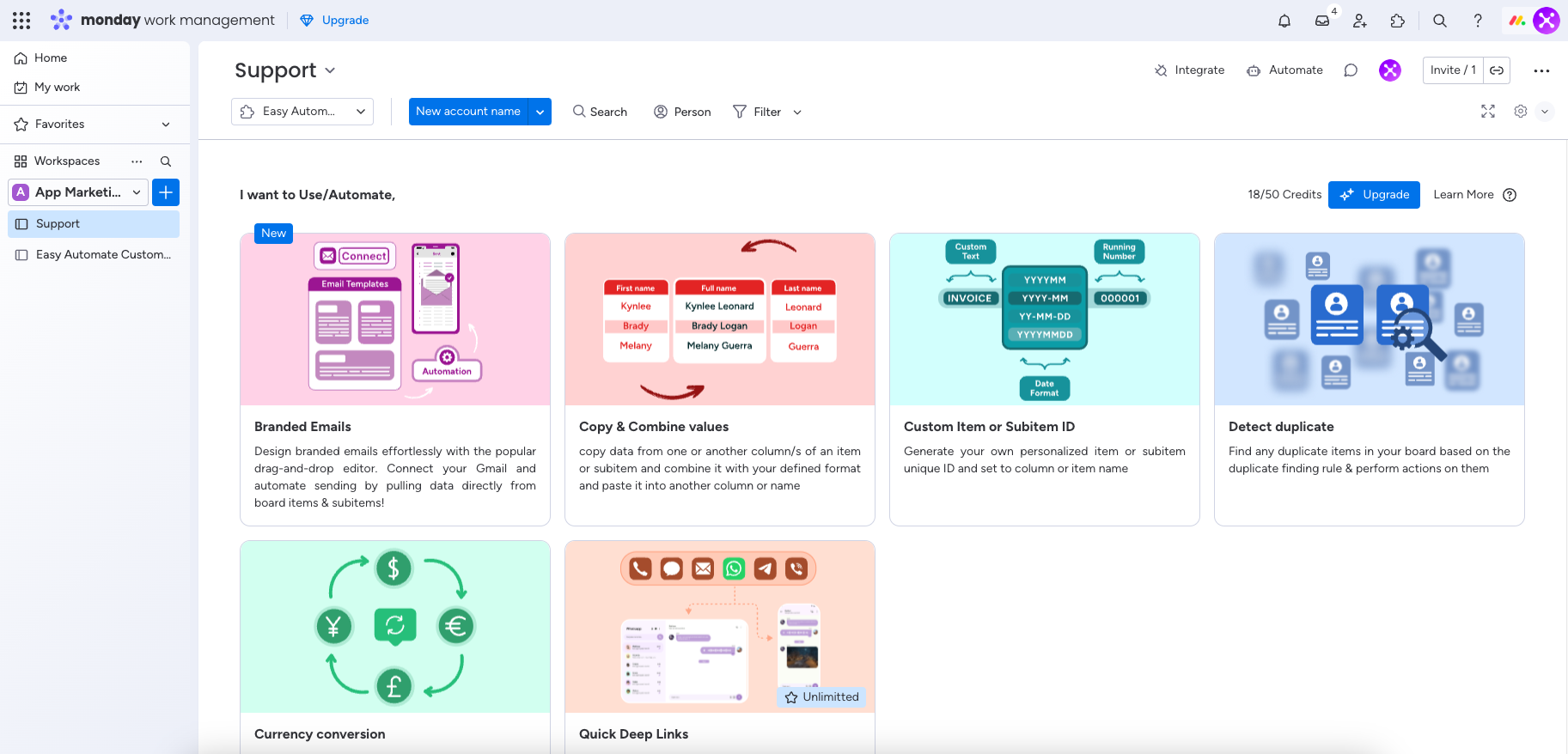
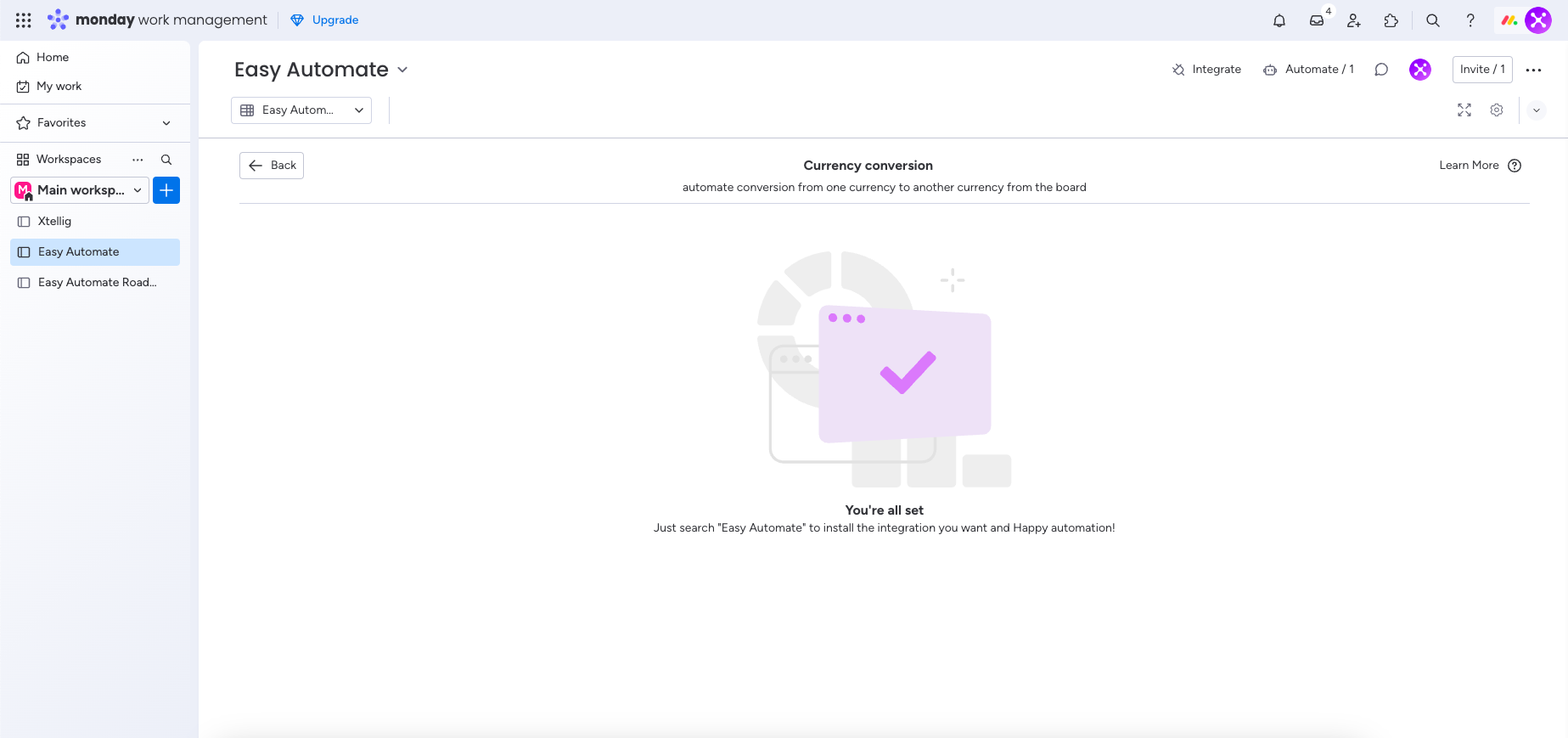
Tip 4 : Ready-to-Use Features When you see a specific feature section like the one below, simply installing the corresponding integration is all that’s needed to start using the feature.
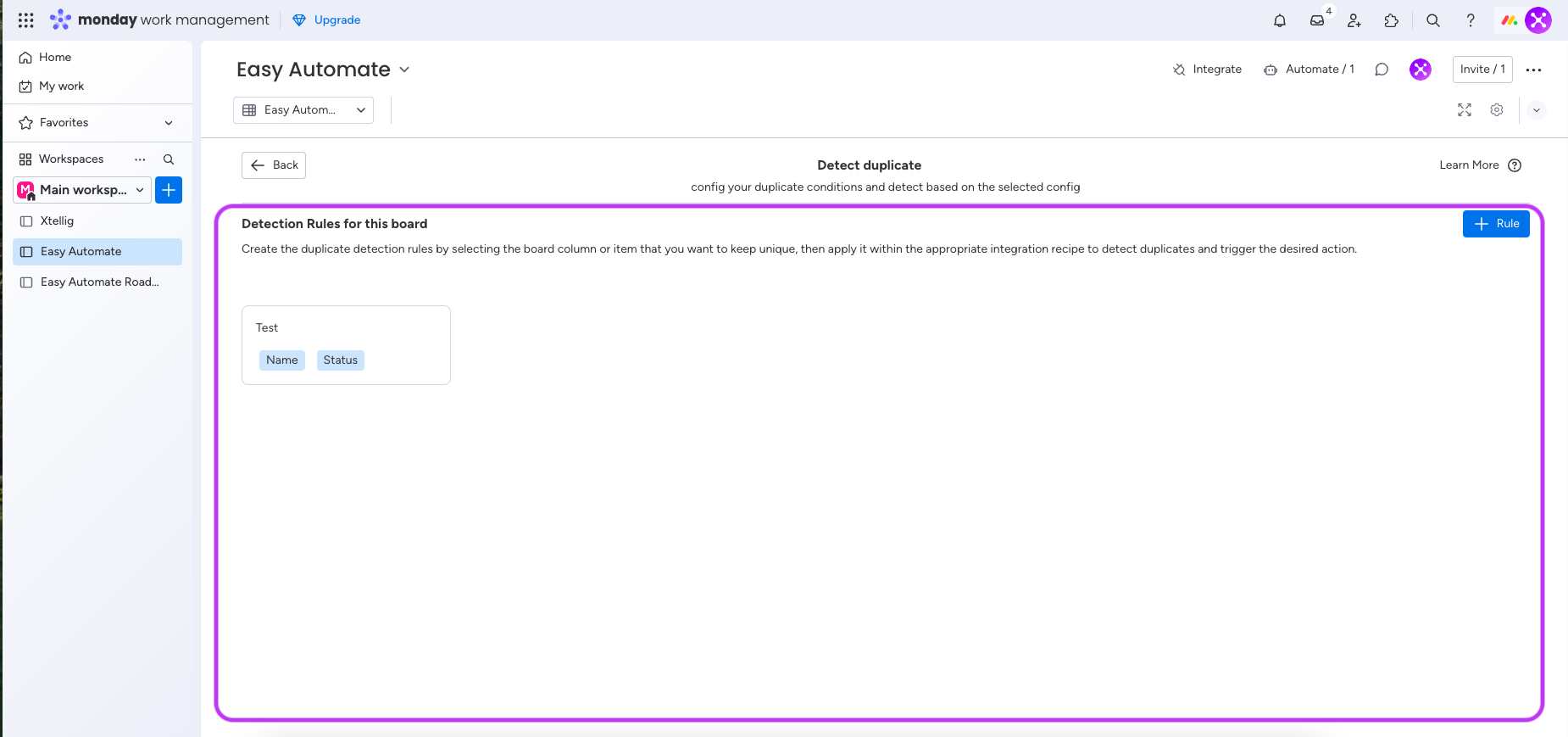
Tip 5 : Feature requires additional setup If you see a specific feature section with additional setup requirements, like the one below, you’ll need to complete the necessary setup before using the feature’s integration.
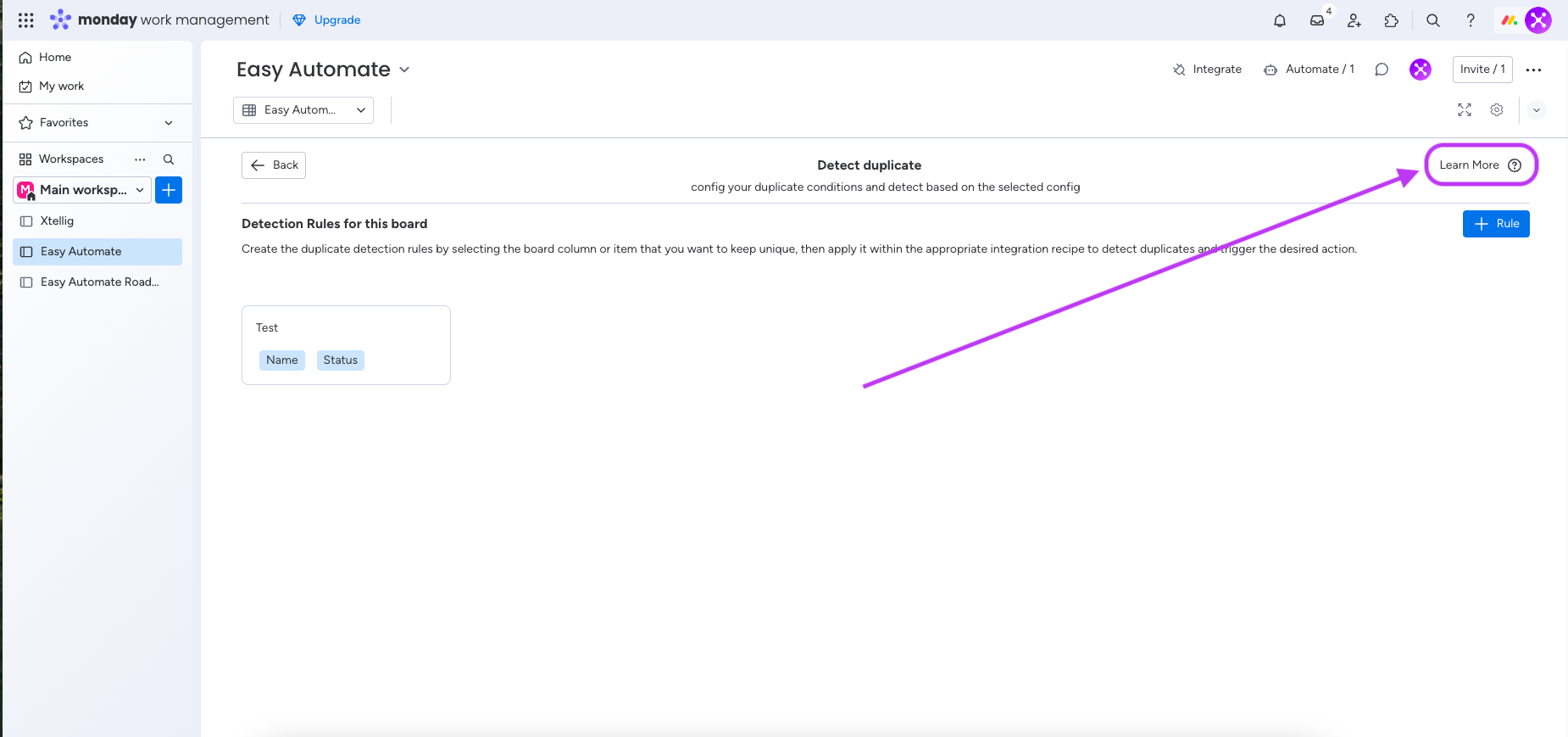
Tip 6 : View Guide for Feature Setup If you’re unsure how to set up the feature with the additional setup, simply go to that feature and check the respective guide by clicking the link shown in the screenshot below.
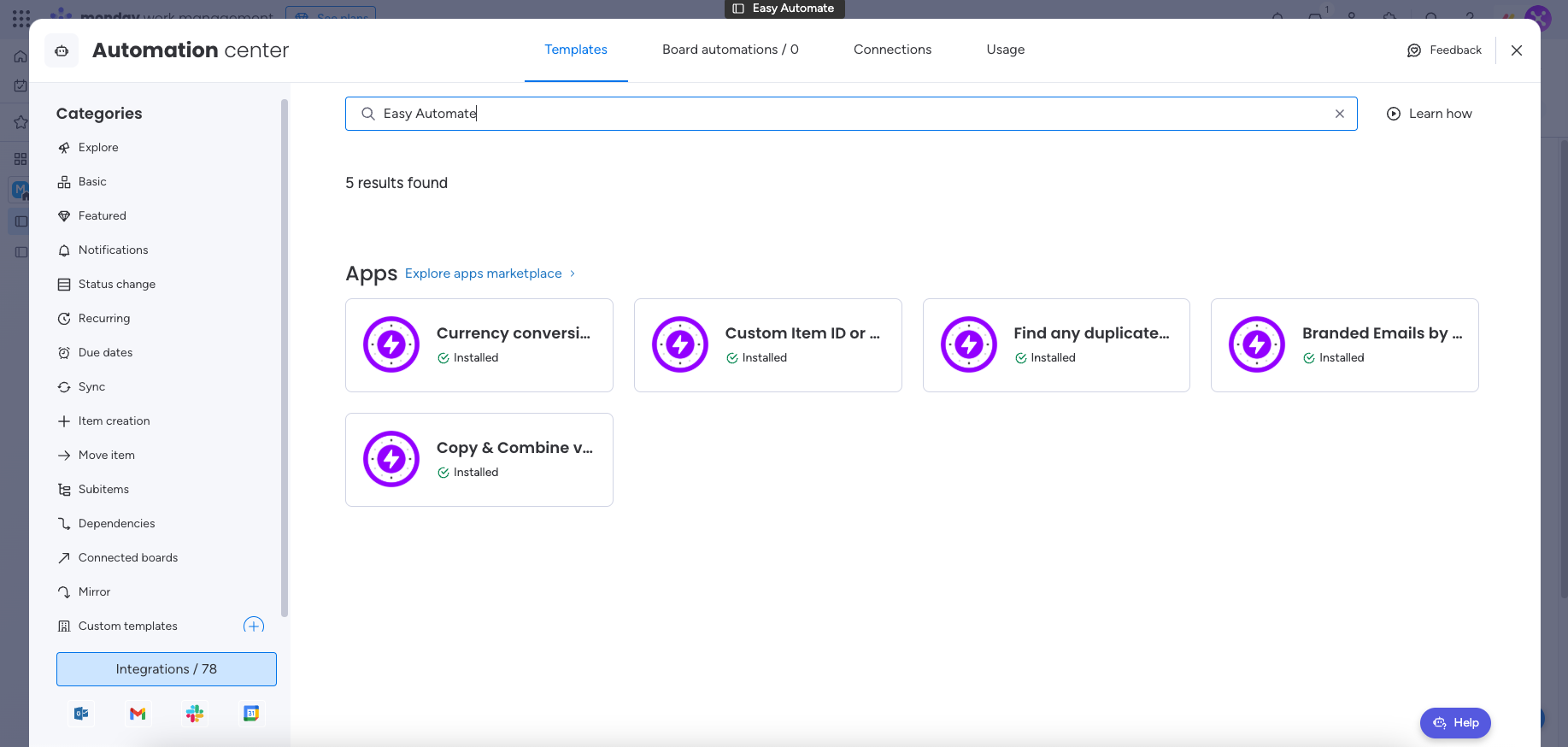
Tip 7 : Find and Use App Integrations Click “Integrate” and search for “Easy Automate” and All available integration features of the app will be listed as shown in the below screenshot. Choose the desired feature to see all the automations of that feature
Still having trouble with the setup? Schedule a demo with us, and we’ll help you automate the right integration to meet your needs.